How to Share Your Fitness Class Schedule on Social Media
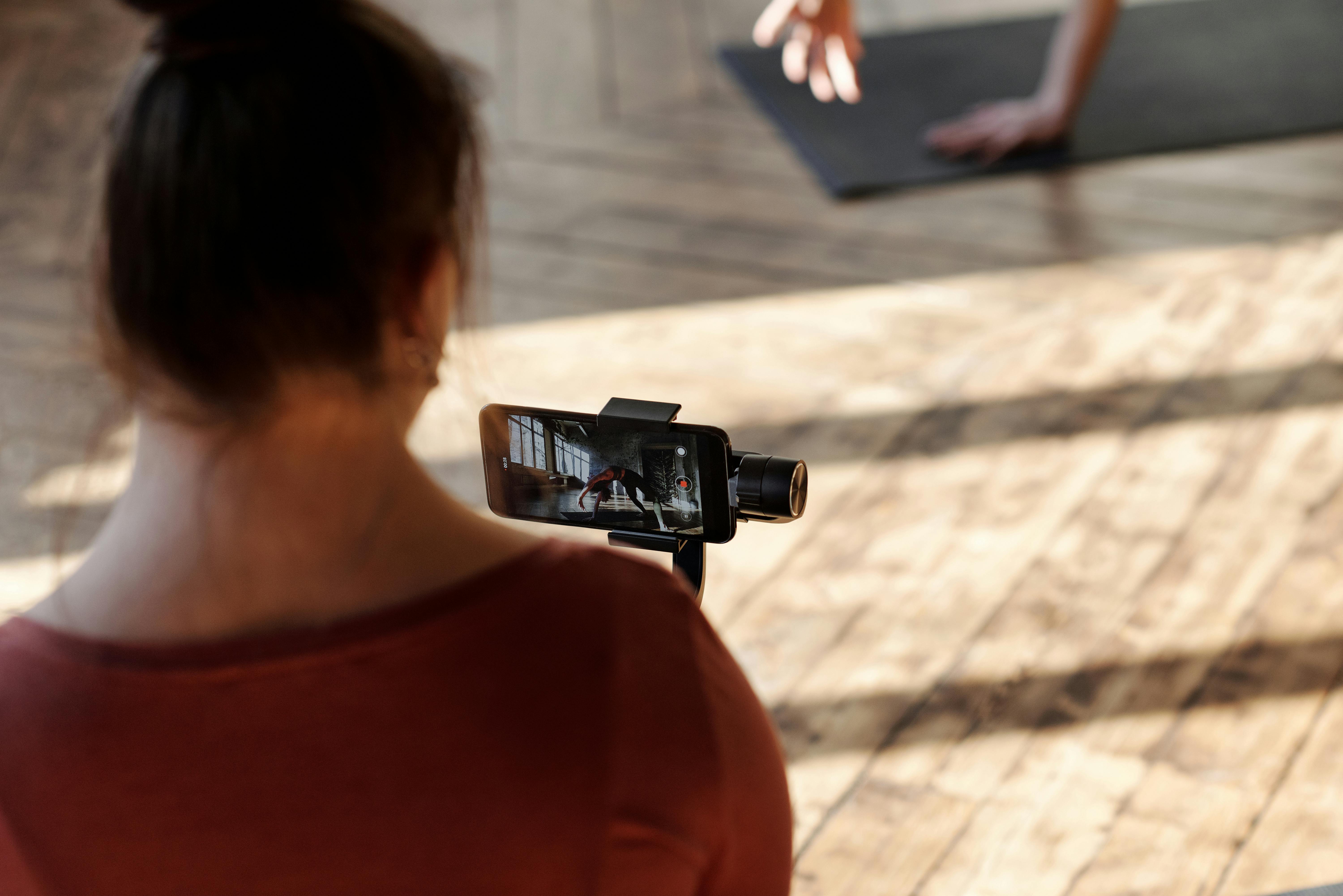
Learn the best strategies to promote your fitness class schedule on social media. Use branded links, QR codes, and scheduling tools to boost attendance and engagement.
How to Share Your Fitness Class Schedule on Social Media
You’ve designed an awesome fitness class, created a weekly schedule, and even have a studio full of energy. But when you post that schedule on social media, the engagement is flat, and new sign-ups are scarce. Sound familiar? The problem isn’t your class — it’s how you’re sharing the schedule. Your audience is scrolling fast, and a plain text list or a blurry photo won’t cut it. Let’s change that.
In this guide, you’ll learn exactly <b>how to share your fitness class schedule on social media</b> in a way that grabs attention, drives clicks, and fills your next session. We’ll cover formatting, link strategies, design tips, and even how to track what works — because guessing isn’t a strategy.
Why Your Fitness Class Schedule Needs a Social Media Makeover
Your schedule is your most important marketing asset. But if it’s hard to read, hard to click, or hard to remember, people won’t act. A messy schedule creates friction. A clear, shareable schedule builds trust and makes booking effortless.
When you master <b>how to share your fitness class schedule on social media</b>, you turn every post into a conversion funnel. Your followers become attendees, and attendees become loyal members.
Step 1: Optimize Your Schedule Format for Social Sharing
Before you post, decide on the format. Different platforms favor different styles:
- <b>Instagram / Facebook:</b> Use a vertical carousel or a Reel showing each day’s class. Keep text minimal and use bright backgrounds.
- <b>Twitter / X:</b> Pin a tweet with your weekly schedule and update it every Sunday. Use short lines and emojis.
- <b>LinkedIn:</b> Share an infographic that highlights your expertise and class benefits, not just timings.
- <b>Pinterest:</b> Create a vertical pin with the week’s schedule and link to your booking page.
Pro tip: Resize your images to platform specs (Instagram 1080×1080, Pinterest 1000×1500). Use Canva’s templates to stay consistent.
Step 2: Use Branded Links to Track Clicks
Long URLs from your booking system look ugly and scare off clicks. Plus, you can’t see who clicked unless you use link tracking. That’s where <b>URL branding</b> comes in.
A branded link like <i>youstudio.fit/monday-yoga</i> is cleaner, builds trust, and lets you measure engagement. Services such as https://uconnectpro.live/ make it simple to create short, branded links that include your business name and a custom path. You can even add UTM parameters automatically.
Whenever you share your schedule, attach a branded link to the booking page. Then check the analytics to see which posts drive the most traffic. This turns your social media into a data-driven funnel.
Step 3: Leverage Instagram Stories and Highlights
Stories are perfect for daily or weekly reminders. Post a Story each morning with today’s class and a swipe-up link (if you have 10k+ followers) or a sticker link. But even without the swipe-up, you can guide followers to the link in your bio.
Create a Highlight called “Schedule” or “Classes” and save your weekly schedule graphics there. Update it every Monday. New followers will immediately see what you offer.
Step 4: Create Eye-Catching Graphics with Canva
A text-only post gets lost. A vibrant, on-brand graphic stops the scroll. Here’s what to include in a schedule graphic:
- Your studio name and logo (top left or bottom right)
- Day(s) of the week in large, bold font
- Class name, time, and instructor
- A brief benefit (e.g., “Flexibility & core strength”)
- A clear call-to-action: “Book now →” with a link
Use the same color palette and fonts across all posts. Consistency builds recognition. If you’re not a designer, use Canva’s fitness templates — they’re free and customizable.
Step 5: Schedule Posts in Advance with Tools
Don’t manually post your schedule every week. Use tools like Buffer, Later, or Hootsuite to schedule a series of posts. Plan a monthly content calendar:
- <b>Weekly schedule post</b> (every Monday morning)
- <b>Spotlight on a class</b> (every Wednesday)
- <b>Testimonial + schedule reminder</b> (every Friday)
- <b>Last-minute reminder</b> (before popular classes)
Scheduling frees up your time and ensures your audience always knows <b>how to share your fitness class schedule on social media</b> — because you’re consistently showing them.
Step 6: Encourage User-Generated Content
When your students post their before/after photos or tag you in their workout stories, repost them! Then add a comment with your schedule. This social proof is powerful. You can even create a branded hashtag like #FitWith[YourName] and feature the best posts.
User-generated content makes your schedule feel alive. It’s not just a list of times — it’s a community invitation.
Comparison: Direct Links vs. Branded Links vs. QR Codes
| Feature | Direct SNS Link | Branded Link (e.g., Uconnectpro) | QR Code in Posts |
|---|---|---|---|
| Appearance | Long & ugly | Short & professional | Square image |
| Click tracking | None | Full analytics | Limited |
| Customization | No | Yes (custom path, UTM) | No |
| Trust factor | Low | High | Medium |
| Best for | Bio link only | All posts, Stories, bio | Print flyers, venues |
If you want to elevate your online presence, branded links are the clear winner. They combine professionalism with traceability — exactly what you need when <b>how to share your fitness class schedule on social media</b> becomes a core part of your marketing.
Expert Tips and Pro Strategies
- <b>Use a Link-in-Bio tool</b> like Linktree or direct people to a dedicated landing page that always shows the latest schedule.
- <b>Post at peak times</b>: early mornings (7–8 AM) and evenings (6–8 PM) when people plan their workouts.
- <b>Include a countdown sticker</b> in Stories for upcoming classes to create urgency.
- <b>Cross-promote with local businesses</b>: coffee shops, health stores, or apparel brands. Swap schedule posts.
- <b>Repurpose</b>: turn your schedule into a short video (Reel/TikTok) with fast cuts of different classes.
Remember, the goal is to make it stupidly easy for someone to see what’s available and book. Every extra click reduces conversion.
Frequently Asked Questions
- <b>Q: How often should I post my fitness class schedule?</b> At least once a week. More if you have last-minute slots or changes. Consistency builds expectation.
- <b>Q: What if my schedule changes mid-week?</b> Update your pinned post or Highlight immediately. Then send a Story alert to regulars.
- <b>Q: Can I automate the schedule updates?</b> Yes, use tools like Zapier to connect your booking system to social media – but always review before posting.
- <b>Q: Should I include pricing in the schedule?</b> Only if you want to set expectations. Many studios keep pricing separate to funnel people to a booking page.
- <b>Q: How do I measure success?</b> Track clicks from your branded links, booking page visits, and actual sign-ups. Compare week over week.
Ready to Fill Your Classes?
Now you know exactly <b>how to share your fitness class schedule on social media</b> in a way that actually works. Start with one change today: create a branded link for your schedule, design a simple graphic, and set a recurring weekly post.
Want more ideas? Check out our related guides: /how-to-share-your-meal-plan-pdf-with-a-clean-link and /the-best-way-to-book-a-wellness-appointment-online. They’re part of the same toolkit to help you build a thriving wellness brand.
And if you’re ready to step up your link game, sign up for https://uconnectpro.live/ today and start creating branded URLs that your audience will love to click. Your next full class is just one smart post away.