How to Print a QR Code and Short Link on Flyers for Maximum Engagement
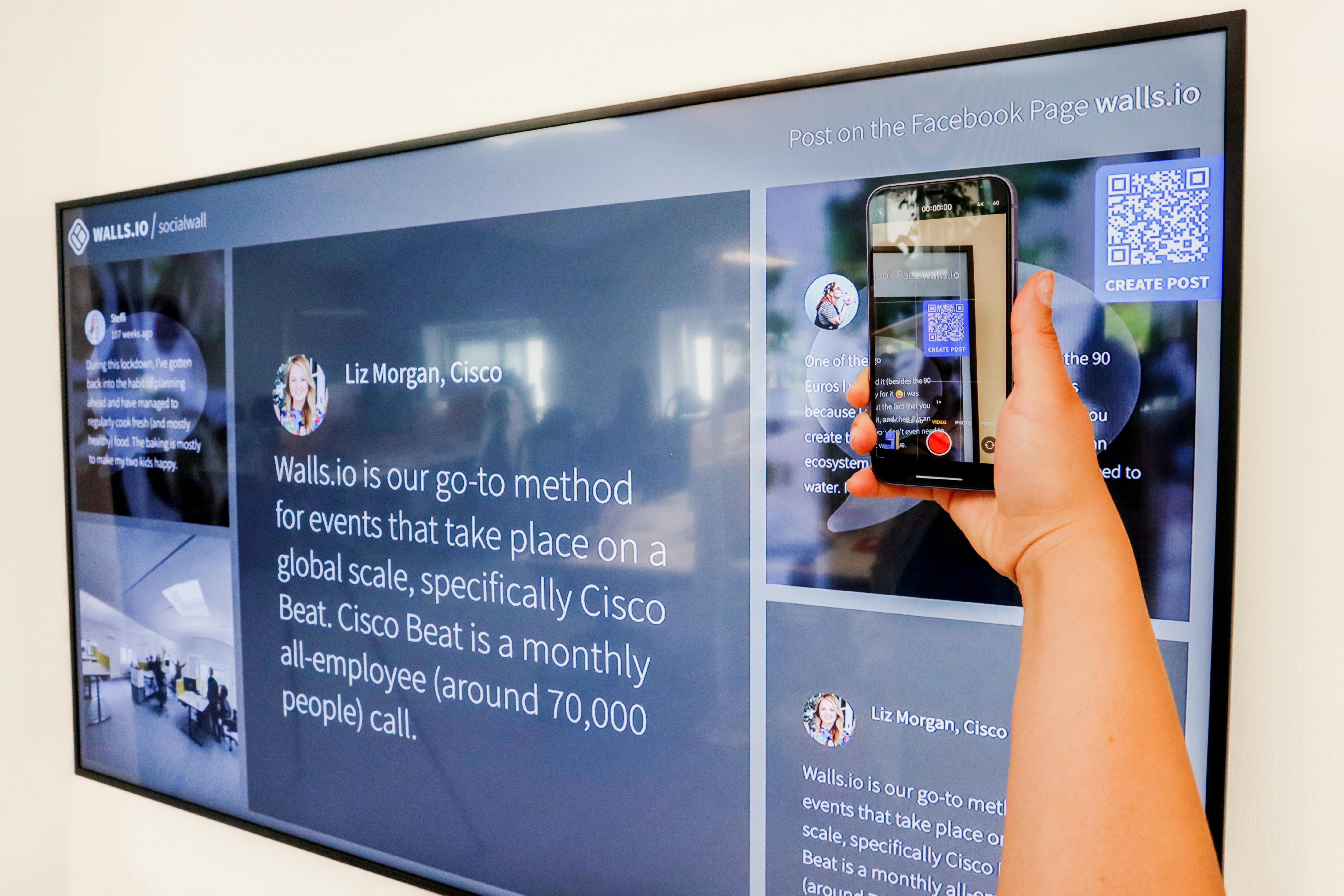
Learn step-by-step how to print QR codes and short links on flyers. Boost engagement, track offline campaigns, and make your flyers work harder with these expert tips.
Why Your Flyers Need a QR Code and Short Link
You’ve spent hours designing the perfect flyer. The colors pop, the font is sharp, and your offer is irresistible. But there’s one problem: how do you get people to take action right away? That’s where printing a QR code and short link on your flyers changes everything.
A QR code lets anyone scan and visit your page instantly. A short link gives them a fallback option if they prefer typing. Together, they bridge the gap between offline materials and online engagement. Without them, you’re leaving conversions on the table.
The Real Problem with Traditional Flyers
Traditional flyers rely on memory or manual URL entry. Both are unreliable. People see your flyer, get interested, but then forget to visit your site. Even if they remember, typing a long URL from a printed piece is frustrating and error-prone.
This friction kills engagement. According to studies, over 70% of people won’t bother typing a long URL from a flyer. But with a scannable QR code and a clean short link, you remove that barrier entirely.
Step-by-Step Guide: How to Print a QR Code and Short Link on Flyers
Step 1: Generate a Short Link First
Before creating your QR code, shorten your target URL. This gives you a clean, memorable link that fits neatly on your flyer. Use a reliable link shortener that also offers analytics. For example, you can <strong>brand your URLs</strong> with a custom domain to build trust and recognition. Tools like Uconnectpro allow you to create short links that are both trackable and on-brand.
A branded short link like <em>yourbrand.ly/event</em> looks professional and reinforces your identity. It also makes your QR code cleaner because shorter URLs encode into simpler patterns that scan faster.
Step 2: Create a High-Quality QR Code
Once you have your short link, generate a QR code. Use a generator that allows customization—colors, logos, and error correction. A high error correction level (H or Q) ensures the code remains scannable even if the flyer gets slightly damaged.
Always test your QR code with multiple devices before printing. Scan it from different angles and distances. If it fails, adjust the size or contrast.
Step 3: Design the Flyer Layout
Place the QR code in a prominent but natural spot. The bottom right corner or center of the flyer works well. Include a clear call to action (CTA) near the code, like “Scan to RSVP” or “Get your discount.”
For the short link, print it in a legible font just below or beside the QR code. Use a size that’s easy to read—at least 12pt for body text and 14pt for the URL itself.
Step 4: Choose the Right Print Specifications
Print resolution matters. For QR codes, use at least 300 DPI. The minimum size for a QR code on a flyer is 2x2 cm (0.8x0.8 inches). Larger is better—aim for 3x3 cm or more. Ensure the background around the QR code is white or light-colored for maximum contrast.
If you’re printing on textured paper or matte finish, test a sample first. Glossy finishes can cause glare that interferes with scanning.
Step 5: Test, Test, Test
Print a few test copies and scan them with different phones and QR reader apps. Check the link destination and make sure it redirects correctly. If you’re using a dynamic QR code (one that can be edited later), you can update the destination without reprinting.
Real Examples: How Brands Use QR Codes and Short Links on Flyers
Let’s look at a few real-world scenarios where printing QR codes and short links made a difference.
Example 1: Wedding RSVPs
A couple created a wedding website and printed flyers with a QR code and short link. Guests scanned to RSVP, view the schedule, and access a gift registry. The result? A 90% RSVP rate within two weeks. For more details, check out our guide on <strong>How to Create a Wedding Website That Guests Will Actually Use</strong>.
Example 2: Event Promotion on WhatsApp
A local music festival printed flyers with a QR code that opened a WhatsApp chat with a pre-filled message. The short link directed to the event page. This strategy increased ticket sales by 35%. Learn more in <strong>The Best Way to Share Event Details on WhatsApp</strong>.
Example 3: Google Form RSVPs
A nonprofit used a short link on flyers to direct people to a Google Form for volunteer sign-ups. They also printed a QR code for quick access. This streamlined their process and reduced no-shows. See our post on <strong>How to Share a Google Form RSVP Without the Mess</strong> for tips.
Expert Tips for Maximum Impact
Here are pro strategies to make your flyers even more effective:
- Use a dynamic QR code so you can change the destination later without reprinting.
- Include UTM parameters in your short link to track traffic sources in Google Analytics.
- Keep the design minimal around the QR code—too much clutter reduces scan rates.
- Add a small instruction like “Scan with your phone camera” for less tech-savvy audiences.
- Test your flyer in different lighting conditions to ensure the QR code is scannable.
Another pro tip: if you’re using Eventbrite for ticketing, create a clean short link instead of pasting the full Eventbrite URL. It looks more professional and is easier to remember. Read <strong>How to Make Your Eventbrite Link Look Professional</strong> for more.
Comparison: QR Code vs. Short Link on Flyers
| Feature | QR Code | Short Link |
|---|---|---|
| Ease of use | Scan with camera | Type manually |
| Speed | Instant | Requires typing |
| Trackability | Yes (dynamic codes) | Yes (with analytics) |
| Space needed | 2x2 cm minimum | One line of text |
| Best for | Mobile users | Desktop users & fallback |
Both have strengths. For best results, use them together. The QR code captures mobile users instantly, while the short link ensures everyone can access your page, even if their camera doesn’t scan well.
Frequently Asked Questions
Can I print a QR code in black and white?
Yes, black and white works perfectly. In fact, high contrast (black on white) is the most reliable for scanning. Avoid low-contrast combinations like light gray on white.
What size should my QR code be on a flyer?
Minimum 2x2 cm (0.8x0.8 inches) for standard flyers. For larger formats like posters, scale up to 5x5 cm or more. Bigger codes scan faster and from farther away.
How do I track scans from my flyer?
Use a dynamic QR code and a short link with analytics. Tools like Uconnectpro provide scan counts, location data, and device types. This helps you measure your offline campaign’s performance.
Can I change the destination URL after printing?
Yes, if you use a dynamic QR code. Static QR codes cannot be edited. Always choose dynamic if you might update the link later. The same applies to short links—use a service that allows link editing.
Should I include both a QR code and a short link?
Absolutely. Not everyone knows how to scan QR codes. A short link provides a backup. It also helps people who see the flyer on a screen or in a digital format where QR codes are less useful.
Conclusion: Make Your Flyers Work Harder
Printing a QR code and short link on your flyers is no longer optional—it’s essential. It turns a static piece of paper into a gateway for engagement, tracking, and conversions. Whether you’re promoting an event, a wedding, or a business offer, this simple addition can double your response rates.
Start by creating a short link that’s easy to remember and on-brand. Then generate a high-quality QR code. Design your flyer with clear CTAs, test everything, and watch your offline campaigns come to life.
Ready to get started? Use Uconnectpro to create trackable short links and dynamic QR codes in minutes. Your next flyer campaign will thank you.