How to Create a QR Code for a School Event Registration: A Step-By-Step Guide
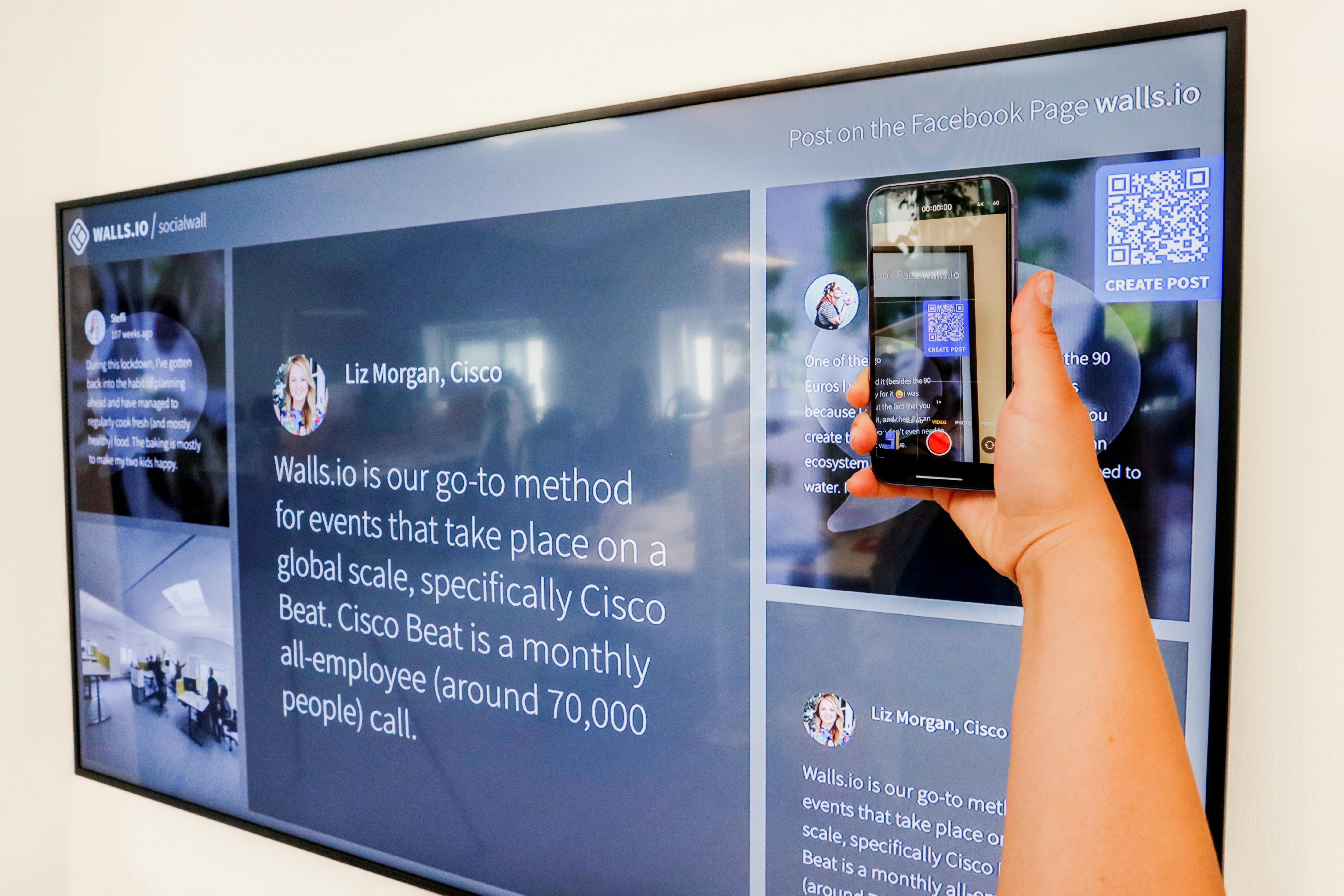
Learn how to create a QR code for school event registration in minutes. Simplify check-ins, reduce paperwork, and boost attendance with this easy guide.
Is your school event registration still drowning in paper forms and long lines? It doesn't have to be that way. A single QR code can transform the chaos into a smooth, contactless experience. In this guide, I'll show you exactly how to create a QR code for a school event registration—no technical skills required.
Why QR Codes Are a Game-Changer for School Events
QR codes eliminate manual data entry, reduce wait times, and minimize errors. Parents and students can register from their phones instantly. For schools, this means real-time attendance tracking and fewer headaches.
Think about your last book fair, parent-teacher conference, or sports tryout. If you used a QR code for registration, you'd have accurate guest lists and zero lost forms. It's a small change with a huge impact.
Step 1: Choose the Right QR Code Generator
You don't need to be a designer or coder. Many free and paid tools let you generate QR codes in seconds. But not all generators are equal. Look for one that offers dynamic QR codes (editable links), custom designs, and analytics.
Free tools work for one-time events, but for recurring registrations, a premium tool gives you flexibility. For instance, you can update the destination URL without reprinting the QR code. This is where a link management platform like Uconnectpro shines—it lets you create memorable short URLs and track clicks over time.
Step 2: Create Your Registration Form
Before generating the QR code, you need a registration landing page. Use Google Forms, Typeform, or your school's internal system. Keep the form short: ask for name, email, grade or class, and any special requirements.
Want to make it even easier? Consider linking to a dedicated registration page on your school website. If you're sharing multiple resources for the same event, you can also consolidate links using a short link—similar to how you would /how-to-creating-a-short-link-for-your-online-course-landing-page.
Step 3: Generate the QR Code
Once your form URL is ready, copy it and paste it into your QR generator. Set the type to "URL" or "Website." Most tools will give you a download option in PNG or SVG. For high-quality prints, choose SVG or a high-resolution PNG.
If you're using a dynamic QR code, now's the time to set your tracking parameters. You'll be able to see how many people scanned the code and from where.
Step 4: Customize and Test Your QR Code
A plain black-and-white QR code works, but adding your school logo or event colors makes it more recognizable. Many generators allow you to change the fill color, add a frame, or embed a small logo in the center.
Always test your QR code with multiple devices and lighting conditions. A common mistake is printing it too small or placing it in a dim area. Print a test copy and scan it from different distances.
Step 5: Share and Display Your QR Code
Now it's time to put your QR code where people can see it. Print it on posters, flyers, newsletters, and even on tent cards at the event entrance. You can also include it in email blasts and social media posts.
For remote pre-registration, share the link directly. A tool that lets you /how-to-share-your-zoom-link-with-students-without-the-chaos can also help manage event links. Similarly, if you're distributing study materials, check out /how-to-share-a-study-guide-without-the-mess.
Static vs. Dynamic QR Codes: Which Should You Choose?
| Feature | Static QR Code | Dynamic QR Code |
|---|---|---|
| Editability | Cannot edit after creation | Can edit destination URL anytime |
| Analytics | No scan tracking | Track scans, locations, devices |
| Cost | Free all the time | Often requires a paid plan for extra features |
| Best for | One-time events with fixed info | Recurring events or campaigns needing updates |
| Customization | Limited | Advanced (logos, colors, frames) |
For school events, dynamic QR codes are almost always worth the small investment. You can reuse the same QR code year after year by updating the registration link. No more printing new codes every time.
Real Examples of QR Codes in School Events
Let me give you a few examples: A middle school used a QR code for its spring carnival registration. Parents scanned it upon arrival and filled out a quick form. Attendance data automatically synced with the school's system, and the PTA saved hours of manual data entry.
Another example: A high school sports department created a dynamic QR code for tryout registration. The link led to a Google Form. After tryouts, the coach simply updated the link to point to the team roster. Players just scanned the same code to see if they made the team.
Expert Tips for Flawless School Event Registration
- Use a short, branded URL before generating the QR code. This makes the code cleaner and easier to scan.
- Place QR codes at eye level and in well-lit areas. Avoid curved surfaces or reflective backgrounds.
- Always have a backup plan: print a few paper copies or display the code on a tablet.
- If you collect sensitive data, ensure your form uses HTTPS encryption.
- Combine the QR code with a text instruction like 'Scan to register' to reduce confusion.
Pro tip: If you are already using a link management tool like Uconnectpro, you can create memorable short URLs and attach them to your QR codes. This way, even if someone doesn't scan, they can type the link manually. It's also useful for /the-best-way-to-share-assignment-resources-with-students in a clean way.
Frequently Asked Questions
Do I need special software to create a QR code?
No. Many free online tools allow you to generate QR codes in seconds. For advanced features like analytics and editable links, you may want a premium service, but it's not required to get started.
How small can a QR code be?
A QR code should be at least 2 cm x 2 cm (about 0.8 inches) for most scans. Smaller sizes risk being unreadable, especially from a distance. Always test the size before bulk printing.
Can I change the link after the QR code is printed?
Only if you use a dynamic QR code. Static QR codes are permanent. If you need flexibility, always choose dynamic—they cost a little more but save headaches later.
How do I track who scanned the QR code?
Dynamic QR codes provide scan data like count, time, and location. Some tools also show device type. Static codes offer no tracking at all.
Can I use a QR code for multiple events?
Yes, if you use a dynamic QR code. You simply update the destination URL to the new registration form. The same printed code will work for the next event.
Conclusion and Next Steps
Creating a QR code for a school event registration is one of the easiest ways to modernize your admission process. With five simple steps—choose a generator, create a form, generate the code, customize, and share—you can save hours of work and provide a better experience for families.
Ready to take it further? Start by creating a registration form and a short, memorable link. Using a tool like Uconnectpro, you can create memorable short URLs that are easy to spell and track. Combine that with a QR code, and you'll have a registration system that runs on autopilot.
Don't let another school event stress you out. Try this method at your next parent-teacher night or fundraiser. You'll wonder why you didn't start sooner.